Monday, 4 May 2015

Colour Space

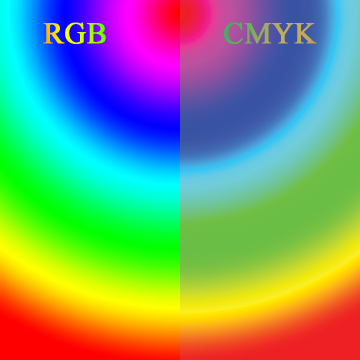
Colour space: This is the organization of colours or can be known as the digital colour palette. The colour space describes the range of colours that a camera can see, a monitor can display and a printer can print. Colour spaces such as Adobe RGB or sRGB are device independent. They also say the colour range which can be used. this is a system for organizing colours numerically and is also called “Colour model”. The mainly used colour spaces are RGB (Red Green Blue) which is used for cameras, scanners and monitors, whereas CMYK (Cyan Magenta Yellow Key) is used for printing, HSV (Hue, Saturation, value) which is used by artists and YUV (Luma Colour Difference) which is used for video. 


The colour space applies numbers to the colours which can be used and it is a three-dimensional object. This object contains all the colour combinations. It works like a paint palette works; each direction in the colour space normally represents some aspect of colour, such as lightness, saturation or hue.
In work I am completing at the moment i have been asked to pick a colour scheme i have looked between RGB and CMYK and have decided to use RGB as it has a wider vibrant variety of colours to use compared to CMYK.

Compression

Compression: 
Compression techniques are used to reduce the size of a file. File size is important if the file needs to be sent to another location. Smaller files arrive at the other location faster as they have less to send compared to big ones. If you want to send a bigger file quickly it needs to be compressed so that it takes less memory up. 


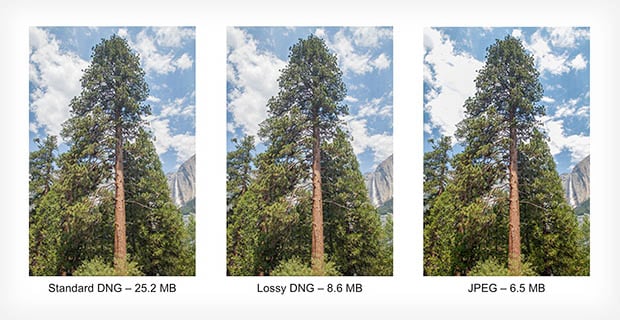
Lossless Compression: Lossless compression is the technique where no data is lost through the compression. An example, a file which is 5.5MB could be reduced to 5MB or less an example of a file that uses this is a GIF file.


http://petapixel.com/assets/uploads/2012/10/lossdng.jpg

Lossy Compression: This technique data is lost. This is done by removing colours that are not used. however one issue with this technique is that it reduces quality of the image. However it does reduce file size.
When creating images to promote the college i had a number of images that were Photoshop files, I noticed that these were taking up a lot of memory on my hard drive and had to compress them down to different formats to save memory.

Screen Icons

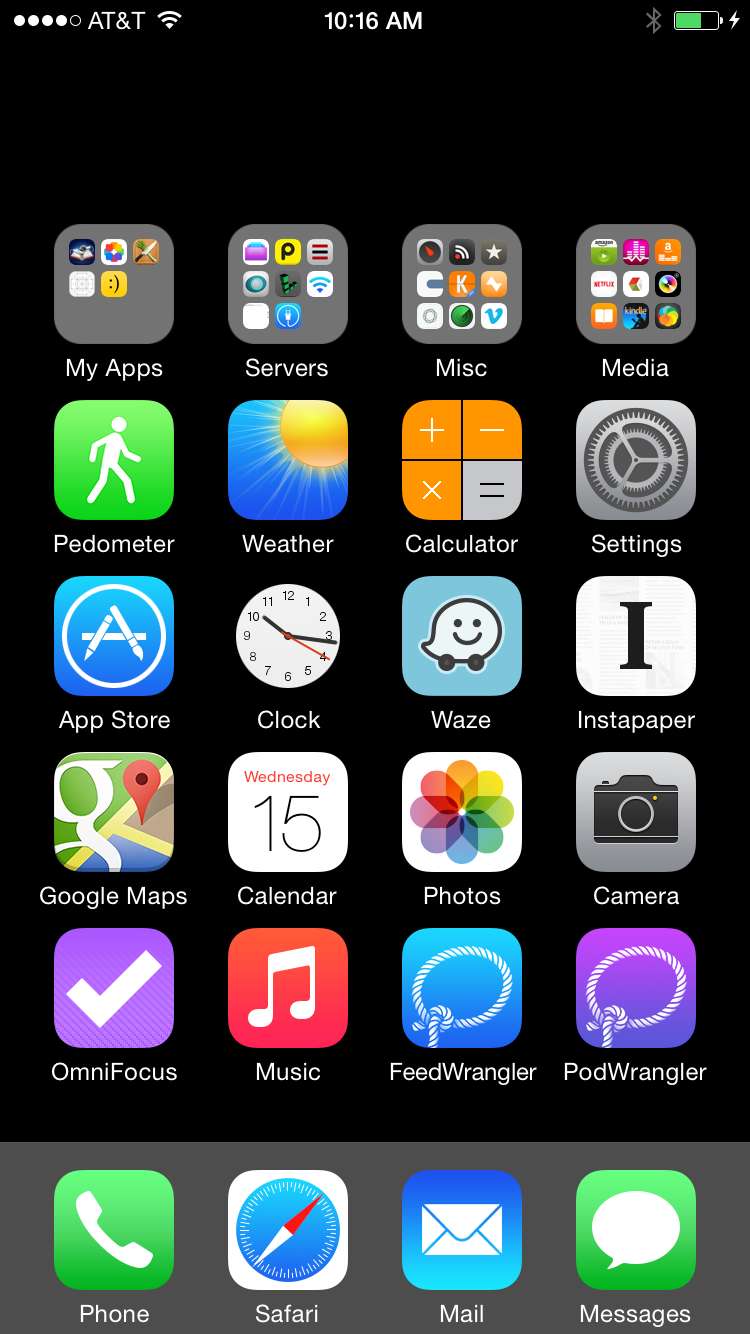
Screen icons: Application icons used to launch an application it’s used as navigation mostly for mobile devices however is also used on computers as well, they are used and have a hyper link in to launch every application (form of GUI)
screen icons can vary between the sizes of 16 X 16 to 128 X 128,


http://david-smith.org/resources/iphonesixhomescreen.png
I have been asked to create screen icons and so far have completed thumbnail sketches of these icons however i will have to create these on the PC with working hyper-links to go to other pages. 


Pixel

Pixel: Pixel is the short name for Picture Element. Its the basic programmable colour capable on displays and images. Pixels are single point on an image and are a Raster Graphic. Computer monitors display pictures by splitting them up into millions of pixels; these pixels are arranged into rows and columns. Once the pixels are put close together, they creates a clear image, the image looks crisp however if zoomed into far enough you can distinguish each pixel. The size of a pixel on screen depends on what the resolution on the monitor is set to. If the monitors display is set at maximum resolution, the actual size of the pixel will be the same as the monitors pixels. If the resolution is set to smaller than the display maximum resolution, the pixels will be larger than the physical size of the screens pixels.


When editing images in a task i had to zoom into images so far so that i could see the pixels and edit things in the image this way so that i could change parts of the image that i wasn't able to with other tools in Photoshop.


Optimising

Optimising: is changing how an image looks and making it go to the point that it cannot be changed any more, such as changing its bit depth, resolution and dimensions, which allows it to bring out the best quality of an image. 
Target destination: is when moving an image on an image across from one folder to another location someone where else in the computer, this is known as the target destination as it is where the movement will end and be placed into he folder it has been told to be moved to.
Bit depth: is used to describe the number of bits used to determine the colour of a single pixel. The exact colour of a pixel is a blend of the three components of the colour spectrum, RGB (Red, Green, and Blue). The number of bits that are used to represent each pixel determines how many colours or shades of grey will be displayed in the image. For example in 8-bit images, the colour monitor uses 8-bits of information for each pixel; this makes it able to display 2 to 8th power different colours or shade of grey. Allowing it to display 256 colours. There are many bit-depths/colour-depths that can be used for images. These are: 1-bit monochrome, 8-bit grayscale, 8-bit colour (Known as 256-Colour mode), 15 or 16-bit colour (known as high colour), 24-bit colour (known as true colour), 30, 36 or 48-bit colour (known as deep colour). It can be measured by BPP (Bits Per Pixel), the value which indicates how many bits have been used in an image.
Bit depth refers to all of the colour information stored in a single image. The higher the bit depth of an image, allowing it to store more colours. A 1 bit image only shows two colours, black and white. Whereas an 8 bit image can store 256 colours and a 24 bit image can store around 16 million colours. The resolution of an image affects the file size as well as the bit depth drastically affects it as well.
Resolution: is how an image is shown the lower the resolution the harder it is to see the image the higher the better, however one issue with higher resolution is that it can slow down a PC loading time as it has to load more pixels compared to a low quality images which has less pixels to load.
Dimensions: are the height and width of an image, changing the dimensions of an image can cause it to change size such as increasing the dimensions makes it bigger and decreasing them make it smaller. When changing them the amount of pixels stay the same the only thing that happens to them is that they get more space between them.
Intended image output: intended image output is needed as it allows a creator to know what specific dimensions an image has to be set at such as it having to fit a specific webpage, however has to also be a specific size so that I can be downloaded quickly as well.
I was also asked in a task when creating images to optimise the colours in an image i did this by changing specific colours such as increasing the level of green on the image RGB so that the green would change, in this image i used it to change the grass so that it didnt look dead and was able to make it look like fresh grass.

Web Banners:

Web Banners:
A web banner is usually shown on a website and usually has to revolve around the websites theme, these are usually raster images as it is easy to create one with pixels compared to a vector which uses shapes. Web banners usually have a key component of a business such as there slogan or something catchy to entice a reader.
Web banners can be used as well to advertise a product,

I am creating an interactive media piece at the moment which i have to create a vast number of webpage sections one of these i have been asked to create is a web banner which is able to promote off what the specification has asked for.

Intensity

Intensity:
image intensity is the change of an image properties such as the gradient of a colour slowly fading out, the image changes from one colour to another and fades slowly till it reaches another colour.


http://upload.wikimedia.org/wikipedia/commons/0/0f/Gradient2.svg

I was asked to create a number of images with specific image options on them one of these that I had to create I had to change the image intensity quite vastly so that you could tell that there was a difference with the image.